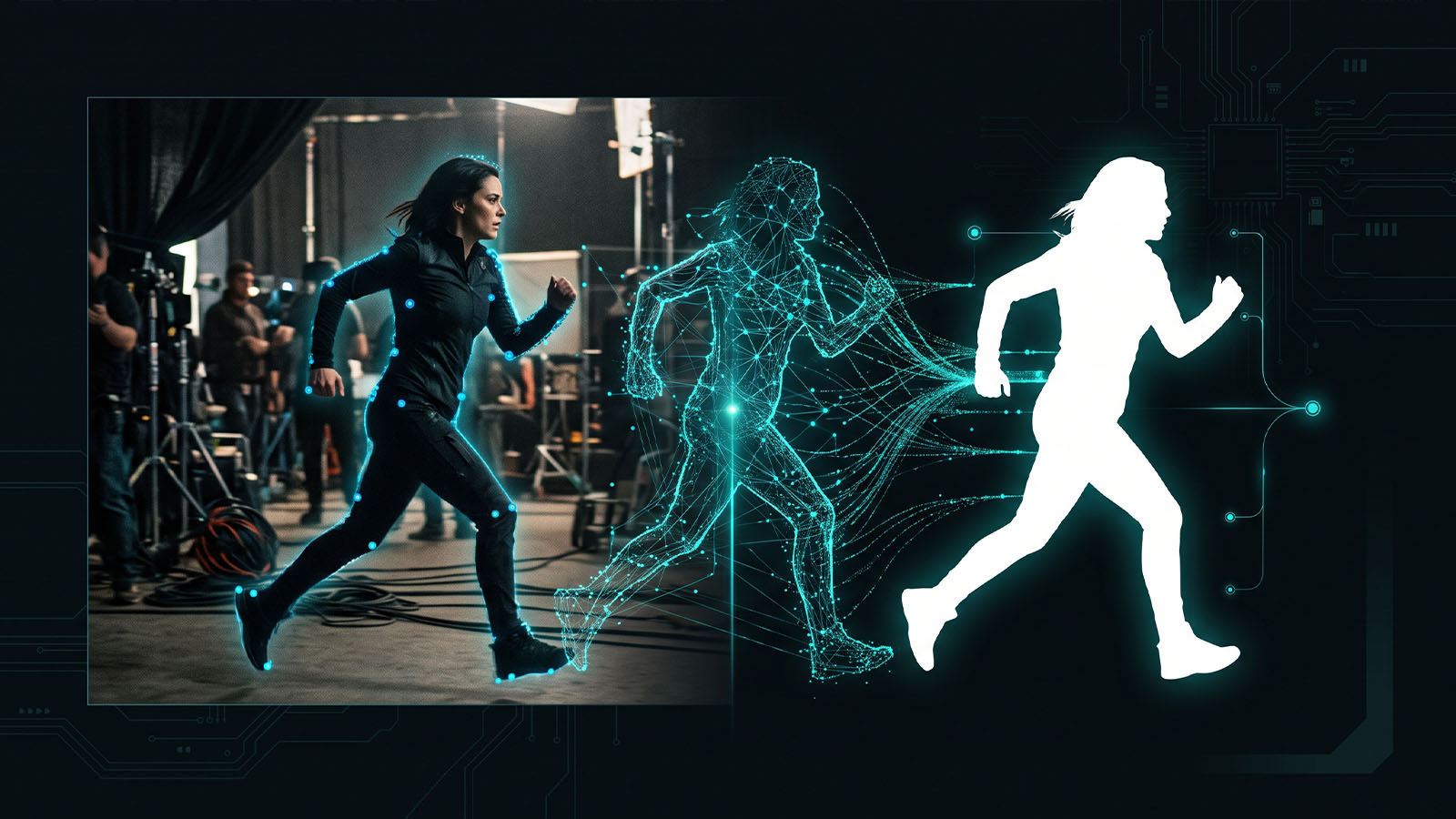


AI can turn a tedious roto first pass into a much faster starting point—but professional rotoscoping still depends on edge quality, temporal stability, artist control and careful cleanup.
What makes AI rotoscoping good?
A good AI roto tool is not simply the one that produces a matte fastest. A production-ready workflow should preserve the subject’s silhouette, survive movement through time and give the artist enough control to correct errors without starting over.
| Factor | Why it matters |
|---|---|
| Initial segmentation | Determines how much manual work the first pass requires. |
| Temporal consistency | Prevents the matte from crawling or flickering between frames. |
| Fine edges | Hair, motion blur, fur and transparent details expose weak mattes. |
| Occlusion handling | Subjects can disappear behind other objects and reappear later. |
| Manual control | Artists need to fix difficult frames precisely. |
| Pipeline output | Alpha, masks, Cryptomatte and tracking data can matter as much as the image. |
Measure AI roto by minutes saved after cleanup, not by how impressive the first matte looks.
Best AI rotoscoping tools: quick comparison
| Tool | Best for | Main strength | Watch out for |
|---|---|---|---|
| Silhouette 2026 | Professional roto/paint | Face ML, Depth Map ML, Mask ML, Matte Assist ML, Matte Refine ML, AI tracking and Cryptomatte workflow | Higher cost and specialist workflow |
| After Effects | Editors/motion artists | Roto Brush, Refine Edge and Content-Aware Fill inside a familiar post pipeline | Complex feature-film roto can need significant manual refinement |
| Generative AI workflows | Fast isolation/concept work | Useful for quick subject selection and experimentation | Output/control varies by model and can be less deterministic |
Silhouette 2026: best specialist choice
Boris FX’s current Silhouette 2026 release is built specifically around roto, paint and VFX compositing. It includes updated Face ML, Depth Map ML, Mask ML, Matte Assist ML and Matte Refine ML tools.
The updated Matte Refine ML model is designed for improved temporal consistency around edges, while Mask ML supports multi-object workflows and Cryptomatte output. That is important when a shot contains several objects that need to remain independently selectable later in the composite.
Silhouette 2026 also adds Head Track ML, Object Tracker and Point Track ML, allowing the roto workflow to use AI-assisted tracking rather than treating every mask as an isolated drawing task.
Best for: professional roto/paint artists, VFX teams and difficult shots where editable, controllable mattes matter.
Adobe After Effects: practical choice for many creators
Adobe After Effects includes the Roto Brush tool, which can automatically distinguish foreground and background after the artist paints strokes over the subject. Adobe also provides Refine Edge for difficult details such as hair and Content-Aware Fill for removing unwanted objects.
This makes After Effects particularly convenient when the artist is already working in a motion-graphics or Adobe editing workflow and does not want to move every roto task into a separate application.
Best for: YouTube creators, motion designers, editors and smaller VFX workflows that already use After Effects.
What about generative AI masking?
Generative video platforms are increasingly adding visual selection, object manipulation and other VFX-oriented functions. These can be useful when the goal is not simply to create an alpha matte but to modify the visual content around the selected subject.
However, there is an important distinction:
↓
FAST VISUAL RESULT
SPECIALIST ROTO
↓
CONTROLLED, EDITABLE MATTE
↓
COMPOSITE / CLIENT REVISION
For a final client shot with demanding edge work, an artist may still prefer a dedicated roto pipeline.
Hair and fine edges: the real test
Hair is one of the quickest ways to expose a weak roto solution. The subject may look correctly isolated in a static preview while individual strands disappear, pop or produce a hard halo during movement.
Adobe specifically highlights Refine Edge for hair and other complicated edges. Silhouette’s ML matting updates focus on improved edge behavior and temporal consistency, which are also critical for hair and fine detail.
For difficult hair, use AI for the first pass and then inspect the matte at 100% and at final delivery resolution.
Motion blur and fast movement
Fast movement creates two problems: the subject’s true boundary becomes ambiguous, and the matte must remain stable across a changing silhouette.
A good workflow is to let the AI establish the broad subject, then refine the frames where motion blur changes rapidly. Do not judge the result only on a paused sharp frame.
Occlusion and disappearing objects
When another object passes in front of the subject, the roto tool must understand that the visible region has changed. Later, when the subject reappears, the matte needs to reconnect without creating a jump.
Silhouette’s 2026 AI tracking includes Point Track ML designed to follow points through occlusions and even when objects move off-screen.
This is one reason tracking and roto should be treated as connected tasks rather than completely separate steps.
Professional AI roto workflow
Clean plate + correct frame range
2. AI FIRST PASS
Generate segmentation / matte
3. TRACK
Track subject or important points
4. REFINE
Fix silhouette, hair, blur and occlusion
5. CHECK TEMPORALITY
Scrub frame-by-frame
6. OUTPUT
Alpha / matte / Cryptomatte / tracked data
7. COMPOSITE
Integrate into the final shot
Step 1 — Prepare
Use the correct source resolution and frame range. Avoid changing the footage underneath the matte unless the workflow expects it.
Step 2 — AI first pass
Use the tool’s automatic segmentation to establish the broad subject. Save this stage so you can compare it with the final matte.
Step 3 — Track
Use object, point, face or planar tracking where appropriate. Tracking reduces the amount of manual correction needed across long shots.
Step 4 — Refine
Correct difficult edges and keyframes. Do not try to force the AI to solve every unusual frame automatically.
Step 5 — Check temporality
Scrub the complete shot. Look for matte chatter, edge crawling, popping and sudden changes in softness.
Step 6 — Output production data
Where supported, preserve useful data such as Cryptomatte or masks rather than flattening everything into one image. Silhouette’s current ML tools support multi-object Cryptomatte workflows.
Step 7 — Composite
Only after the matte is stable should you integrate the subject into the final environment.
How should you choose an AI roto tool?
| Your situation | Best starting point |
|---|---|
| Feature-film / high-end roto | Silhouette 2026 |
| Already working in After Effects | After Effects Roto Brush |
| YouTube / motion graphics | After Effects or a lightweight generative workflow |
| Complex hair and difficult edges | Silhouette or After Effects + manual refinement |
| Long shots with occlusion | Tool with strong tracking + temporal refinement |
| Multi-object production matte | Silhouette with Cryptomatte workflow |
What should you test before buying?
- Hair: use a difficult close-up.
- Motion blur: test fast movement.
- Occlusion: put another object in front.
- Dark edges: test low-contrast subjects.
- Transparency: include glass or fine semi-transparent detail.
- Long shot: test temporal stability.
- Export: confirm alpha, matte and pipeline compatibility.
Give every roto tool the same 10–20 second difficult shot. Record AI processing time, manual cleanup time and the number of frames requiring correction. That produces a much more useful comparison than a marketing demo.
How much can AI roto really save?
The answer depends heavily on the shot. A simple person against a clean background may require very little correction, while hair, motion blur, reflections and complex occlusions can still demand substantial manual work.
Use this simple production measurement:
Manual Roto Time Before AI
————————–
Manual Cleanup Time After AI
If a 30-minute manual task becomes a 10-minute AI-assisted cleanup, the workflow is saving meaningful artist time. If a five-minute automatic matte creates 40 minutes of corrections, the AI has not improved the production.
Frequently asked questions
What is the best AI rotoscoping software in 2026?
For dedicated professional roto, Silhouette 2026 is the strongest specialist option in this comparison because it combines ML matting, AI tracking, paint, 3D-aware tools and production-oriented outputs.
Is After Effects good for AI rotoscoping?
Yes. After Effects’ Roto Brush automatically helps separate foreground and background, while Refine Edge is designed for difficult details such as hair. It is especially convenient for creators already working inside Adobe’s post-production ecosystem.
Can AI completely replace a roto artist?
For some simple shots, automation can remove much of the repetitive work. Difficult professional shots still benefit from artist supervision, edge refinement and frame-by-frame quality control.
What is the hardest thing for AI rotoscoping?
Fine edges, motion blur, occlusion, reflections and temporal consistency are among the most demanding cases.
Should I use AI roto for client work?
Yes, when the tool’s licensing, privacy and output quality fit the project. Always test the exact type of footage you will deliver and retain an artist-review stage.
3D Generalist & VFX Professional · About the author →