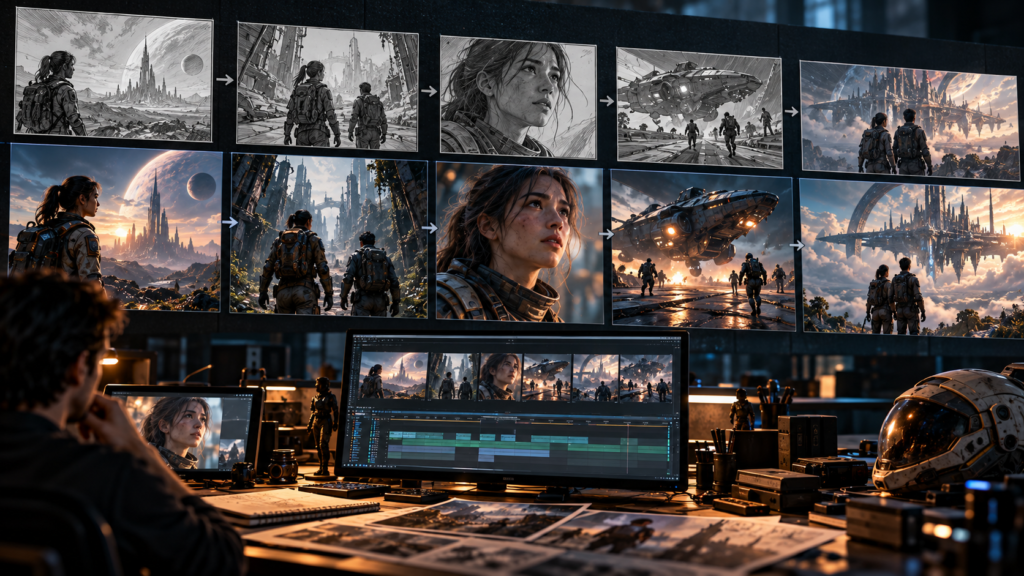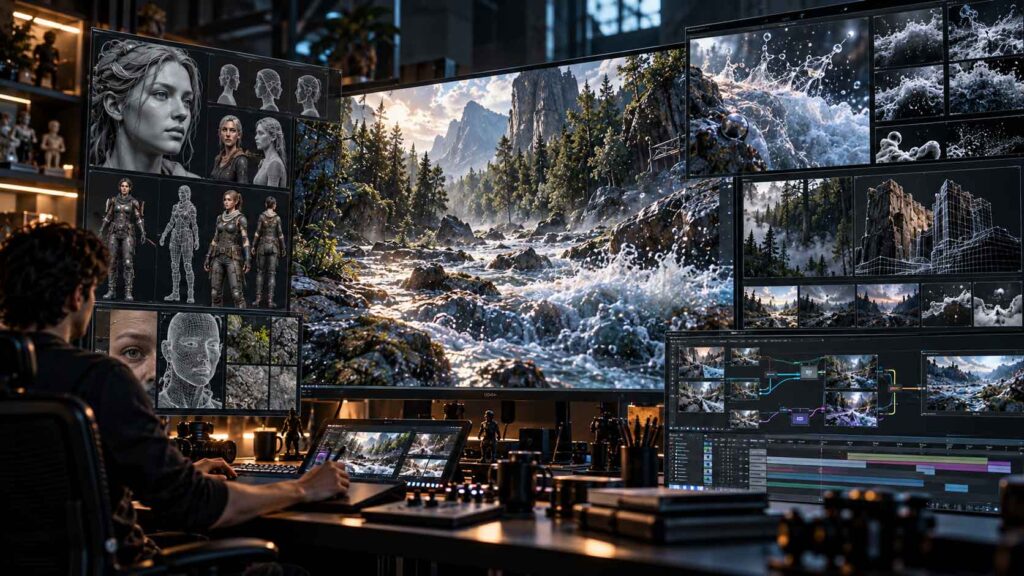


AI can turn a long rotoscoping task into a fast first pass—but professional mattes still depend on edge quality, temporal consistency and artist supervision.
What is AI rotoscoping?
Rotoscoping is the process of creating animated mattes that separate a foreground subject or object from its background. Those mattes can then be used for compositing, background replacement, color correction, object removal, effects or CG integration.
AI-assisted roto adds automated subject recognition and temporal propagation to the process. Instead of drawing every frame from scratch, the artist creates a strong initial selection and lets the system carry it through the shot.
Why rotoscoping still matters in modern VFX
Even with keying, depth tools and generative video, there are many shots where a clean matte is the most reliable way to control an element. Roto can isolate a person without a green screen, separate foreground objects, create holdouts and define where CG elements appear.
Adobe’s current After Effects documentation describes rotoscoping as a way to isolate moving objects and combine live-action elements, while its AI Object Matte workflow adds faster subject selection and tracking.
The professional AI roto workflow
| Stage | Artist action | AI contribution |
|---|---|---|
| 1. Inspect | Choose the best starting frame. | None / analysis. |
| 2. Select | Define the subject. | Subject segmentation. |
| 3. Propagate | Review the range. | Temporal tracking. |
| 4. Refine | Correct edges. | Edge assistance. |
| 5. Repair | Fix occlusion and drift. | Re-analysis where useful. |
| 6. QC | Check the entire shot. | None—artist judgement. |
Object Matte: the current AI roto workflow
Adobe introduced Object Matte in After Effects 26.2 as an AI-powered evolution of the Roto Brush workflow. It can select and isolate moving subjects, propagate the matte across frames, and provide refinement tools for difficult areas.
Adobe’s July 2026 tutorial describes a simple workflow: hover over the subject, click to select it, let After Effects analyze the clip, then refine the matte with Quick Selection, Selection Brush and Refine Edge.
A practical starting method
- Choose a frame where the subject is clearly visible.
- Create the initial selection.
- Check several frames forward and backward.
- Correct obvious drift early.
- Use Refine Edge on hair and soft boundaries.
- Freeze the result once the matte is stable.
Hair and fine edges
Hair is one of the quickest ways to expose a weak matte. A hard binary edge often looks like a cut-out, while an overly soft edge creates halos.
Use a combination of AI selection and edge refinement. Adobe specifically highlights Refine Edge for intricate details such as hair.
| Edge problem | What to look for | Correction |
|---|---|---|
| Halo | Background color around subject. | Contract/decontaminate or refine edge. |
| Chatter | Edge changes rapidly between frames. | Stabilize and review propagation. |
| Lost hair | Fine strands disappear. | Use edge refinement and manual correction. |
| Too soft | Subject looks semi-transparent. | Reduce excessive feathering. |
Motion blur: the hidden roto problem
A matte can look perfect on a sharp frame and fail completely when the subject moves quickly. Motion blur changes the apparent boundary and may require a softer, more physically believable matte.
Do not judge only the still frame. Scrub at normal playback speed and inspect fast movement at full resolution.
Occlusion and difficult shots
AI propagation can struggle when the subject disappears behind another object, changes appearance or leaves the frame. Treat these events as checkpoints rather than assuming the initial solve will remain correct.
| Situation | Recommended approach |
|---|---|
| Person passes behind a pole | Split the matte and create a holdout for the occluder. |
| Hand crosses face | Separate layers or correct the affected region. |
| Subject exits frame | End or restart the propagation around the transition. |
| Reflective/glass subject | Use additional masks and manual judgement. |
| Smoke or transparent fabric | Combine roto with other matte techniques. |
Manual cleanup: where the VFX artist earns the value
The goal of AI roto is not to eliminate artist judgement. It is to move the artist away from repetitive drawing and toward supervision and precision.
For professional work, inspect:
- Silhouette continuity
- Edge chatter
- Hair detail
- Motion blur
- Occlusion transitions
- Fine props and fingers
- Reflections and transparency
- Background contamination
Never approve an AI matte from the first frame. Check the beginning, middle, end and every major motion/occlusion transition.
Using the matte in compositing
Once the matte is clean, it becomes a production asset. You can use it to replace a background, isolate an actor, add effects, insert CG, change color selectively or create holdouts.
↓
ACTOR / FOREGROUND
+
NEW BACKGROUND
+
CG / EFFECTS
+
SHADOW / ATMOSPHERE
↓
FINAL COMPOSITE
Adobe’s current After Effects workflow combines AI matte creation with traditional tools such as Pen-based masks, edge refinement and Content-Aware Fill for related cleanup tasks.
AI roto vs traditional roto tools
| Approach | Strength | Weakness | Best use |
|---|---|---|---|
| AI Object Matte | Fast selection and propagation | Needs review on difficult shots | Fast first pass |
| Roto Brush / Quick Selection | Artist-guided selection | Still needs cleanup | Controlled subject isolation |
| Pen-tool roto | Maximum shape control | Slow | Hard edges and precision |
| Hybrid roto | Speed + control | Requires judgement | Professional VFX |
AI rotoscoping QC checklist
- Does the matte stay attached to the subject?
- Are hair and fine edges believable?
- Are there halos?
- Does the matte handle motion blur?
- Are occlusion transitions clean?
- Does the subject disappear/reappear correctly?
- Are hands, fingers and props included?
- Does the matte work at final delivery resolution?
- Does it remain stable at normal playback speed?
- Can another artist understand and modify the matte?
AI roto in the larger Zgian VFX workflow
CAMERA TRACKING → Camera Tracking Guide
AI VS VFX → AI Video vs Traditional VFX
COMPOSITING → VFX Hub
Frequently asked questions
What is AI rotoscoping?
AI rotoscoping uses automated computer vision to identify a subject, create a matte and propagate that matte through video frames. The artist then refines and validates the result.
Is AI rotoscoping better than manual roto?
It is usually faster for the initial pass, but manual control remains important for difficult edges, occlusion, motion blur and high-value shots. A hybrid workflow is often the most practical.
Can AI roto handle hair?
It can assist with hair and fine details, but hair remains challenging. Edge refinement and manual correction may still be required. Adobe’s current Object Matte includes a Refine Edge tool specifically for intricate details.
Can AI rotoscoping work without a green screen?
Yes. Subject-isolation tools can separate foreground elements directly from ordinary live-action footage. Adobe’s After Effects documentation describes rotoscoping for footage that is not shot on a green screen.
What should I learn if I want to become a VFX roto artist?
Learn mattes, alpha channels, edge treatment, motion blur, tracking, compositing and shot continuity. Then learn how AI tools accelerate those fundamentals rather than replacing them.
Continue the Zgian AI + VFX series
3D Generalist & VFX Professional · About the author →