

How to upscale, denoise, sharpen and restore video without destroying the original image—and how to build a practical enhancement pipeline for VFX, archives and AI-generated footage.
What is AI video upscaling?
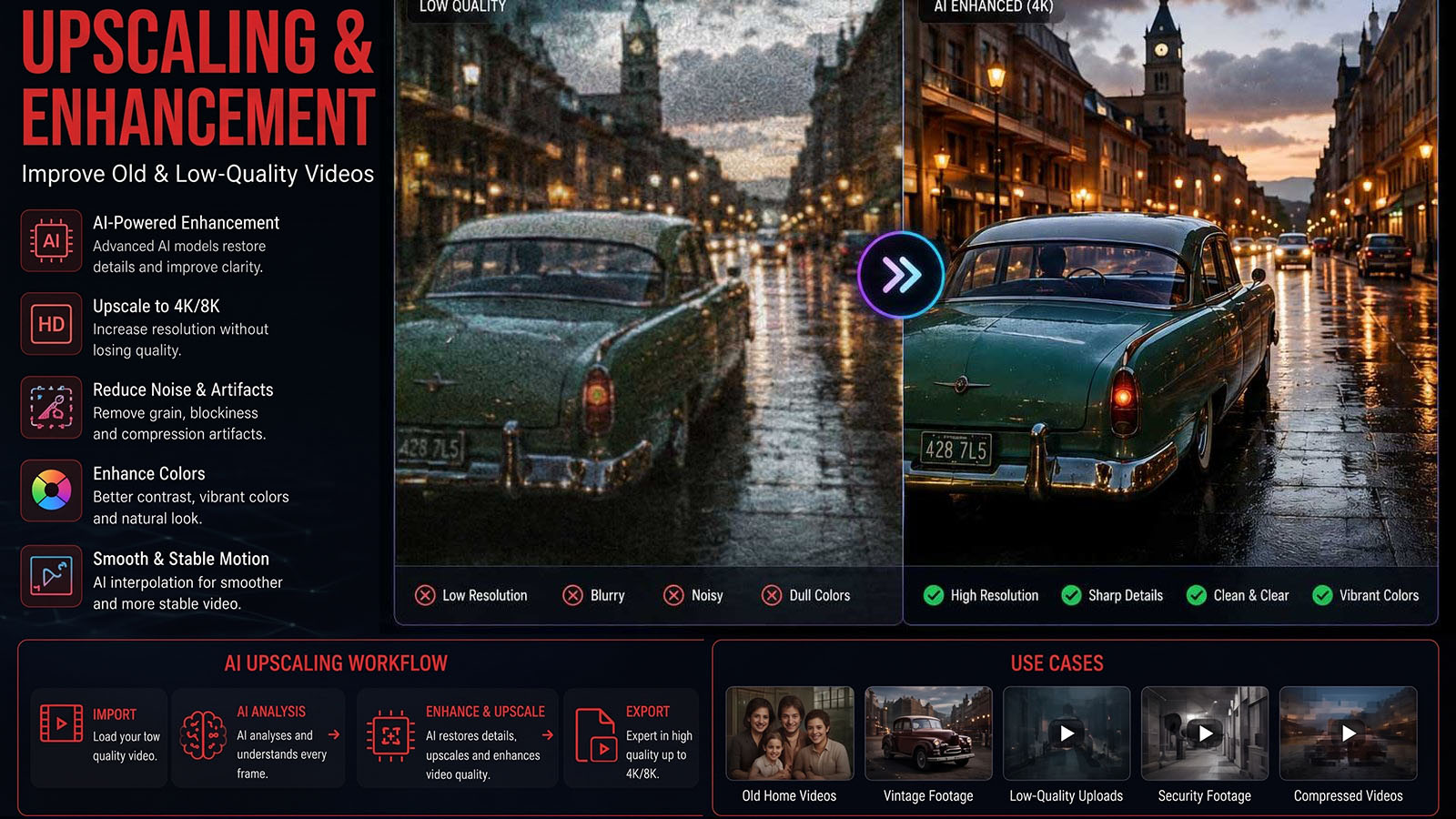
Traditional upscaling enlarges an image by interpolating existing pixels. AI video enhancement can go further by using learned models to estimate detail, reduce noise, restore faces, improve focus or create intermediate frames.
The important word is estimate. AI cannot literally recover every detail that was never captured. It generates the most plausible reconstruction the model can infer from the available information.
1. Start with the source, not the output resolution
Before choosing an AI model, inspect what is actually wrong with the footage. A 1080p clean image may need only a resolution increase. A damaged SD archive may need deinterlacing, denoising, deblocking, stabilization and restoration before scaling.
| Source problem | Priority |
|---|---|
| Low resolution | Upscaling |
| Heavy noise | Denoising before aggressive sharpening |
| Compression blocks | Deartifacting / restoration |
| Soft focus | Focus/detail recovery |
| Interlaced footage | Correct field treatment first |
| Camera shake | Stabilization before final finishing |
Topaz’s current enhancement controls distinguish progressive and interlaced source types and provide different AI models for enhancement, denoising and upscaling.
2. The professional AI restoration workflow
- Preserve the original. Never overwrite the source.
- Inspect the clip. Identify noise, blur, compression, interlacing and frame-rate issues.
- Test a short section. Compare several models before processing the entire film.
- Restore first. Remove serious degradation before adding aggressive detail.
- Upscale. Choose the smallest enlargement that meets delivery requirements.
- Check temporal consistency. Watch for flicker, crawling texture and changing facial detail.
- Finish. Grade, add controlled grain and export the final master.
3. 2x, 4K and higher upscaling
There is no universal rule that 4K always looks better. A smaller, carefully processed output can look more natural than a heavily reconstructed image.
| Goal | Practical approach |
|---|---|
| 720p → 1080p | Moderate upscale + restrained detail recovery. |
| 1080p → 4K | 2x upscale with model matched to source. |
| SD archive → HD/4K | Restore/deinterlace/denoise before final upscale. |
| AI-generated clip → 4K | Use enhancement carefully to add consistent detail without changing design. |
Topaz currently advertises high-accuracy enhancement up to 4K across live-action, generative AI and animation content, and its Video AI Pro product advertises outputs up to 24K. These are product capabilities, not a guarantee that every source will look good at those sizes.
4. AI denoising
Noise reduction is often more important than sharpening. If you sharpen noisy footage first, you may amplify the noise and compression artifacts.
Topaz currently lists dedicated denoising models and describes its models as being trained to distinguish noise from detail.
Clean → restore → upscale → sharpen is generally safer than sharpen → upscale → sharpen again.
5. Sharpening and detail recovery
Sharpening should improve perceived detail without creating halos, ringing or plastic-looking skin. AI enhancement is particularly sensitive to faces, text and repeating textures.
- Inspect eyes and hair at 100%.
- Check skin for waxy textures.
- Check straight edges for halos.
- Check patterned clothing for invented detail.
- Compare the enhanced image against the original, not only the final output.
6. Restoring old and archival footage
Old footage can contain multiple problems at once: low resolution, film grain, scratches, interlacing, compression, faded contrast and unstable frames. Treat restoration as a pipeline rather than applying one “enhance” button.
Topaz currently positions Video for recovering and upscaling old archival video, while Project Starlight is a research-derived diffusion enhancement system designed for degraded, low-resolution video and temporal consistency.
A safer archive workflow
→ DEINTERLACE IF NEEDED
→ DENOISE / RESTORE
→ STABILIZE IF REQUIRED
→ UPSCALE
→ COLOR RESTORE
→ GRAIN / TEXTURE
→ MASTER
7. Enhancing AI-generated video
AI-generated footage has a different problem: it may already be sharp enough in resolution but lack fine texture, stable faces, natural detail or consistent edges. Upscaling should therefore be used as a finishing step, not as a substitute for fixing a bad generation.
Topaz currently markets its creative video upscaling specifically for generative AI footage as well as traditional footage, with precise and creative enhancement modes.
8. Topaz Video vs DaVinci Resolve
| Need | Topaz Video | DaVinci Resolve |
|---|---|---|
| Dedicated AI enhancement | Strong focus | Part of broader post suite |
| Denoising / restoration | Specialized models | Integrated finishing tools |
| Upscaling | Purpose-built AI models | Super Scale within Resolve Studio |
| Editing / color / audio | Not the main purpose | Full post-production environment |
| Workflow | Standalone + plugins | All-in-one finishing |
Topaz’s own 2026 comparison describes Topaz Video as a dedicated enhancement tool and Resolve as the broader editing, grading, VFX and audio environment. Topaz also currently provides plugins for After Effects and DaVinci Resolve Studio.
9. A practical Zgian workflow for a low-quality clip
- Import the original clip.
- Identify whether it is progressive or interlaced.
- Remove obvious noise or compression before heavy sharpening.
- Test two or three AI models on a short representative section.
- Compare faces, hair, text and high-frequency textures.
- Choose the least artificial-looking result.
- Upscale to the delivery resolution.
- Bring the result into your NLE/compositor.
- Perform final color and VFX work.
- Add restrained grain if the image has become too synthetic.
10. Common AI upscaling mistakes
| Mistake | Problem | Better approach |
|---|---|---|
| Always choosing maximum resolution | Invented or unstable detail | Choose output based on delivery. |
| Over-sharpening | Halos and crunchy edges | Use restrained detail recovery. |
| Ignoring noise | Noise becomes texture | Denoise first. |
| Processing the entire film immediately | Long renders with poor settings | Test short representative clips. |
| Trusting a single frame | Temporal flicker | Watch the full sequence. |
11. Final QC checklist
- Compare original and enhanced footage at 100%.
- Watch faces throughout the clip.
- Check hair and fine texture.
- Look for temporal flicker.
- Check text and logos.
- Inspect repeated patterns.
- Check motion blur.
- Check color consistency.
- Check that the enhancement has not changed important creative details.
- Review the final master at normal playback speed.
How this fits the Zgian AI Video cluster
AI FILMMAKING → AI Filmmaking Hub
CINEMATIC AI → Cinematic AI Hub
AI VFX → AI VFX Workflow for Film
AI COMPOSITING → AI Compositing Guide
Frequently asked questions
Can AI upscale 1080p video to 4K?
Yes. AI upscalers can generate a 4K output from 1080p footage, but the result depends strongly on the quality of the source and the model. Upscaling does not magically recover every original detail.
Can AI restore old video?
Yes. Modern AI tools can help with denoising, upscaling, stabilization and other restoration tasks. Old footage often needs several steps rather than one enhancement pass.
What is the best AI video upscaler?
There is no universal winner. Topaz Video is purpose-built for enhancement, while DaVinci Resolve combines Super Scale with editing, color, VFX and finishing. The right choice depends on the source and workflow.
Does AI upscaling make video truly 4K?
It creates a 4K-resolution output, but some of the fine detail is reconstructed rather than originally captured. Treat “4K output” and “native 4K detail” as different things.
Should I sharpen before upscaling?
Usually avoid aggressive sharpening before upscaling. Excessive sharpening can amplify noise and artifacts. Test a restoration-first workflow and compare the result.
Continue the Zgian AI Video series
3D Generalist & VFX Professional · About the author →