
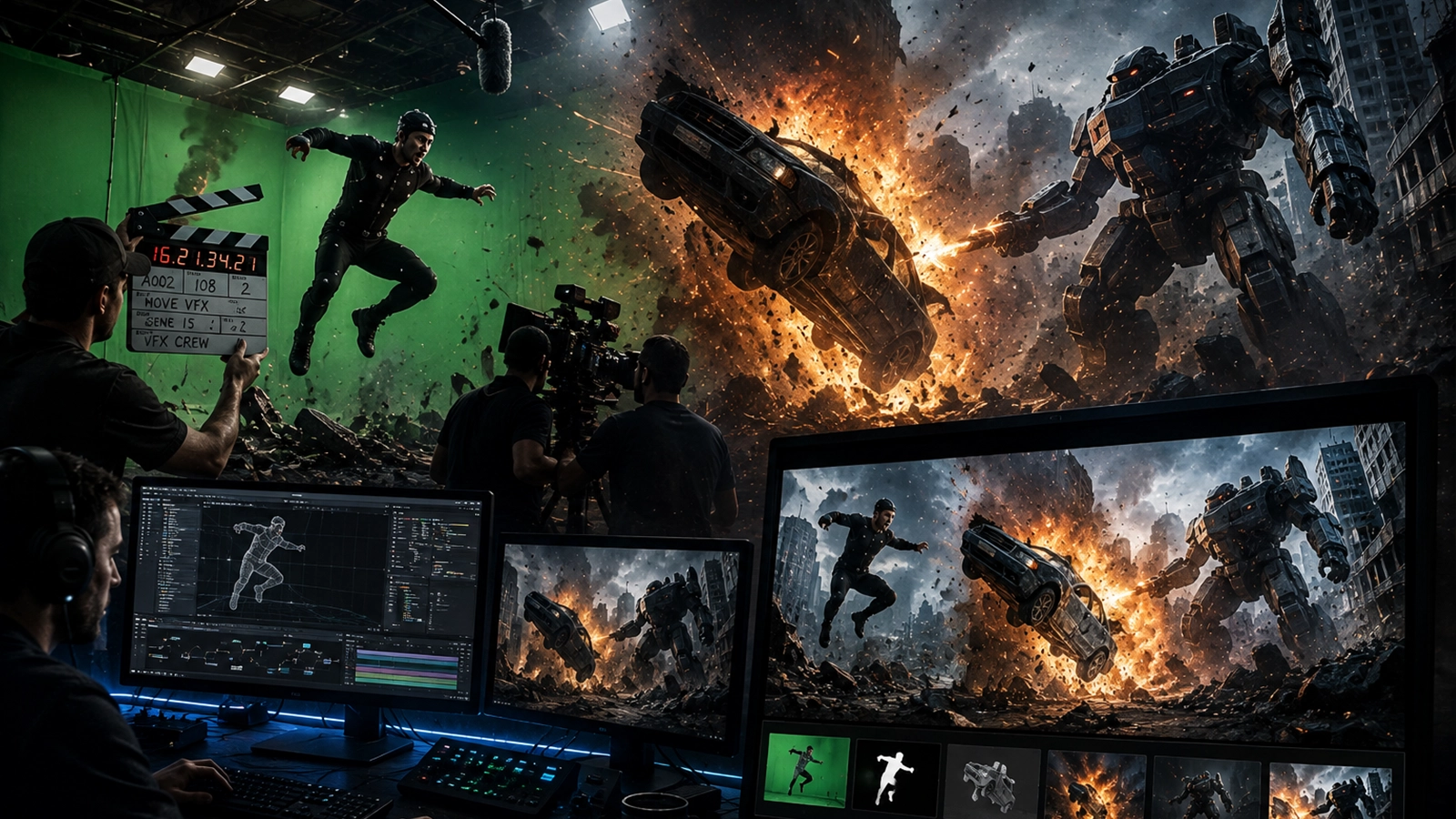
AI can remove objects and repair plates faster than ever. Professional cleanup still requires tracking, clean-plate thinking, texture reconstruction, reflections and careful temporal QC.
- What VFX cleanup means
- What AI cleanup is good at
- Wire and rig removal
- Removing unwanted people
- Logos, signs and unwanted graphics
- Clean-plate creation
- Tracking the repair
- Reflections, shadows and texture
- Temporal consistency
- AI cleanup tools in 2026
- Complete workflow
- Common mistakes
- Final cleanup QC
- FAQ
1. What VFX cleanup actually means
VFX cleanup removes or repairs unwanted visual information while preserving the surrounding image. Traditional cleanup may use paint, cloning, tracking, roto and clean plates. AI adds fast object understanding and generative image reconstruction.
The important distinction is that removing an object is only half the job. The replacement pixels must belong to the same scene, move correctly, contain plausible texture and remain stable across frames.
→ MASK / TRACK
→ REMOVE
→ REBUILD BACKGROUND
→ MATCH TEXTURE / LIGHT
→ TEMPORAL QC
2. What AI cleanup is good at
| Task | AI strength | Professional follow-up |
|---|---|---|
| Small object removal | Fast local reconstruction. | Check texture and edges. |
| Wire removal | Useful for first-pass fill. | Track and repair intersections. |
| Unwanted person | Can generate background replacement. | Rebuild occluded geometry and shadows. |
| Logo/sign removal | Fast patch generation. | Restore surface perspective and texture. |
| Background extension | Generative image expansion. | Match camera motion and depth. |
| Plate damage | Rapid repair. | Check temporal consistency. |
3. Wire and rig removal
Wire removal is a classic VFX cleanup task. A wire can cross skin, clothing, hair, props or complex backgrounds, so a one-click fill may not remain correct throughout the shot.
Wire-removal workflow
- Track the wire and nearby surfaces.
- Create a narrow removal mask with appropriate feathering.
- Generate or paint the clean background.
- Check intersections with the actor or prop.
- Rebuild texture and fine detail.
- Review the repair at full speed.
For difficult wires, combine AI fill with traditional tracked patches. This gives you a controllable fallback when the generated background changes unexpectedly.
4. Removing unwanted people
Removing a person is harder because the subject may cover a large area and reveal background that was never photographed. AI can infer plausible pixels, but the result still has to respect perspective, lighting and scene geometry.
| Situation | Best strategy |
|---|---|
| Person crosses simple wall | AI fill + tracked cleanup. |
| Person crosses textured floor | AI fill + perspective-aware patching. |
| Person blocks another actor | May require roto, reconstruction or alternate plate. |
| Person casts a shadow | Remove/rebuild the shadow separately. |
| Person passes reflective glass | Rebuild reflection as a separate pass. |
5. Logos, signs and unwanted graphics
AI cleanup is useful for removing unwanted logos, signage or graphics from surfaces, but the replacement needs to inherit the surface’s perspective, texture and movement.
- Track the surface.
- Remove the original graphic.
- Rebuild texture underneath.
- Match blur and focus.
- Match lighting and reflections.
- Review the replacement during camera movement.
6. Clean-plate creation
A clean plate is a version of the shot without the unwanted element. It can be photographed separately, painted manually or reconstructed with AI.
| Method | Advantage | Risk |
|---|---|---|
| Original clean plate | Most physically authentic. | May not exist. |
| Tracked patch | Highly controllable. | Labor intensive for large areas. |
| AI generative fill | Very fast for complex backgrounds. | May invent inconsistent details. |
| Projection/3D reconstruction | Good for moving cameras and large areas. | More setup required. |
Use the simplest method that gives stable, believable pixels. Do not use generative AI simply because it is available.
7. Tracking the repair
A cleanup patch that does not follow the plate will immediately reveal itself. Track the affected surface or object and attach the repair to the correct motion.
→ TRACK AREA
→ REMOVE OBJECT
→ CREATE CLEAN PATCH
→ ATTACH PATCH TO TRACK
→ MATCH BLUR / GRAIN
→ CHECK MOTION
Our AI Motion Tracking guide explains the tracking choices that support this workflow.
8. Reflections, shadows and texture
Cleanup becomes difficult when the unwanted object affected something else in the image. Removing a person from a clean wall is different from removing a person reflected in glass.
| Secondary effect | What must be rebuilt |
|---|---|
| Shadow | Ground shadow and contact darkening. |
| Reflection | Reflected background and movement. |
| Specular highlight | Surface highlight continuity. |
| Smoke/dust | Atmospheric density and motion. |
| Depth of field | Blur matching the surrounding plate. |
9. Temporal consistency
AI-generated cleanup often looks convincing on a single frame but changes subtly from frame to frame. Texture crawling, changing wall patterns and shifting lines are classic signs.
If you can identify the repaired area while watching the shot at normal speed, the cleanup is not finished.
- Play the shot at full speed.
- Scrub around the repaired region.
- Compare before/after versions.
- Check repeated texture patterns.
- Check straight lines and perspective.
- Check reflections and shadows.
10. AI cleanup tools in 2026
| Category | Examples / approach | Best use |
|---|---|---|
| Generative video fill | AI generative fill/extension workflows. | Local repair and background extension. |
| AI object isolation | Object-aware matte systems. | Creating removal masks. |
| Traditional paint | Frame-based paint/clone. | Precision hero cleanup. |
| Tracked patches | 2D/planar patches. | Stable surface reconstruction. |
| 3D reconstruction | Projection/set rebuild. | Large moving-camera cleanup. |
Adobe currently documents Generative Fill and Object Matte workflows inside After Effects, while professional compositing systems continue to support tracked, painted and procedural cleanup approaches.
11. Complete Zgian AI cleanup workflow
↓
PLATE QC
↓
IDENTIFY UNWANTED OBJECT
↓
ROTO / AI MATTE
↓
TRACK
↓
CLEAN PLATE / AI FILL
↓
PATCH / PAINT
↓
REFLECTION / SHADOW REPAIR
↓
GRAIN / BLUR MATCH
↓
TEMPORAL QC
↓
FINAL COMPOSITE
- Lock the shot.
- Identify exactly what must disappear.
- Choose AI fill, tracked patch, paint or 3D reconstruction.
- Create the removal matte.
- Track the affected area.
- Generate or build the clean background.
- Restore texture and image characteristics.
- Rebuild reflections and shadows.
- Review at full speed.
- Deliver the clean version and composite version.
12. Common AI cleanup mistakes
| Mistake | Why it fails | Better approach |
|---|---|---|
| One-click removal on the whole shot | Generated details change over time. | Use tracked/local repairs. |
| Ignoring shadows | Object appears partially present. | Remove/rebuild secondary effects. |
| Ignoring reflections | Reflection exposes the removed object. | Repair reflection separately. |
| No motion matching | Patch floats or slides. | Track the surface. |
| Over-smoothing | Background texture becomes artificial. | Preserve original texture. |
| Checking only stills | Temporal artifacts remain. | Always watch the shot. |
13. Final cleanup QC
- Compare the cleaned shot with the original.
- Check the first and last frames.
- Check every major camera move.
- Check straight lines and perspective.
- Check repeated textures.
- Check shadows and reflections.
- Check grain/noise and sharpness.
- Check motion blur.
- Play at full speed.
- Review the final export, not only the comp viewer.
How this fits the Zgian VFX + AI pipeline
AI VFX → AI VFX Workflow
AI ROTO → AI Rotoscoping
AI COMP → AI Compositing
AI TRACKING → AI Motion Tracking
AI CLEANUP → this guide
Frequently asked questions
What is AI VFX cleanup?
AI VFX cleanup uses generative and computer-vision tools to remove unwanted objects, repair plates, extend backgrounds and accelerate traditional paint/roto work.
Can AI remove wires from video?
Yes, AI can assist wire removal, but difficult shots still require tracking, clean-plate work and manual repair.
Can AI remove a person from a video?
It can reconstruct areas behind an unwanted person, but the result depends heavily on how much background is occluded and whether reflections, shadows or complex geometry are involved.
Is AI cleanup better than traditional VFX paint?
Not universally. AI is often faster for broad or complex reconstruction, while traditional paint and tracked patches provide greater control for critical hero details.
How do I stop AI cleanup from flickering?
Use tracked/local repairs, preserve original texture, inspect temporal changes and manually correct frames where the generated content drifts.
Continue the Zgian VFX + AI series
3D Generalist & VFX Professional · About the author →